

How to receive (deposit) crypto
To add crypto to your wallet, send it from an external wallet or exchange to your personal deposit address in the app.
Steps
- Open the app and tap Receive.
- Choose the asset (e.g. USDT) and the network you’ll send on (e.g. TON, TRC20, ERC20, BEP20).
- Copy the address, or let the sender scan the QR code.
- Send from the other wallet. Funds appear in your balance automatically once the network confirms the transfer.
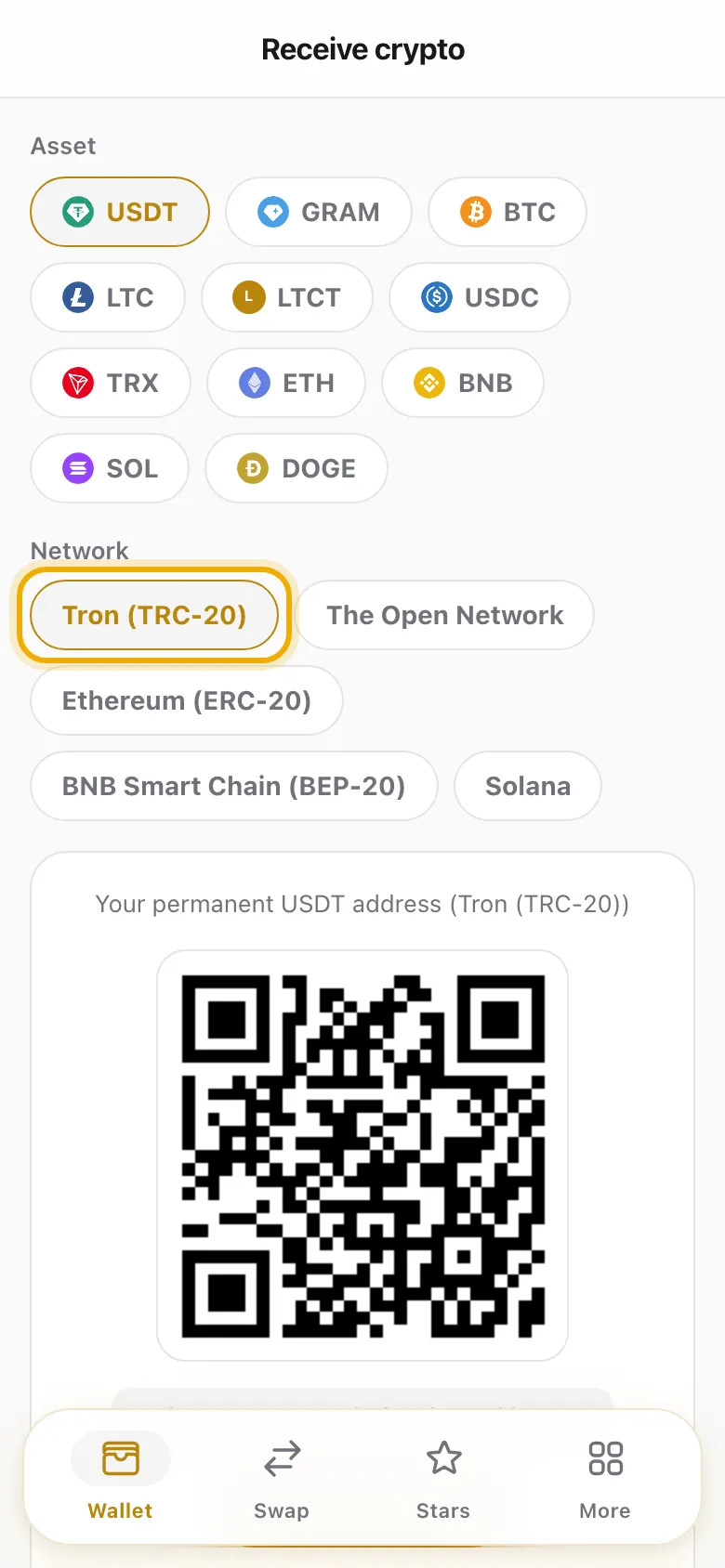
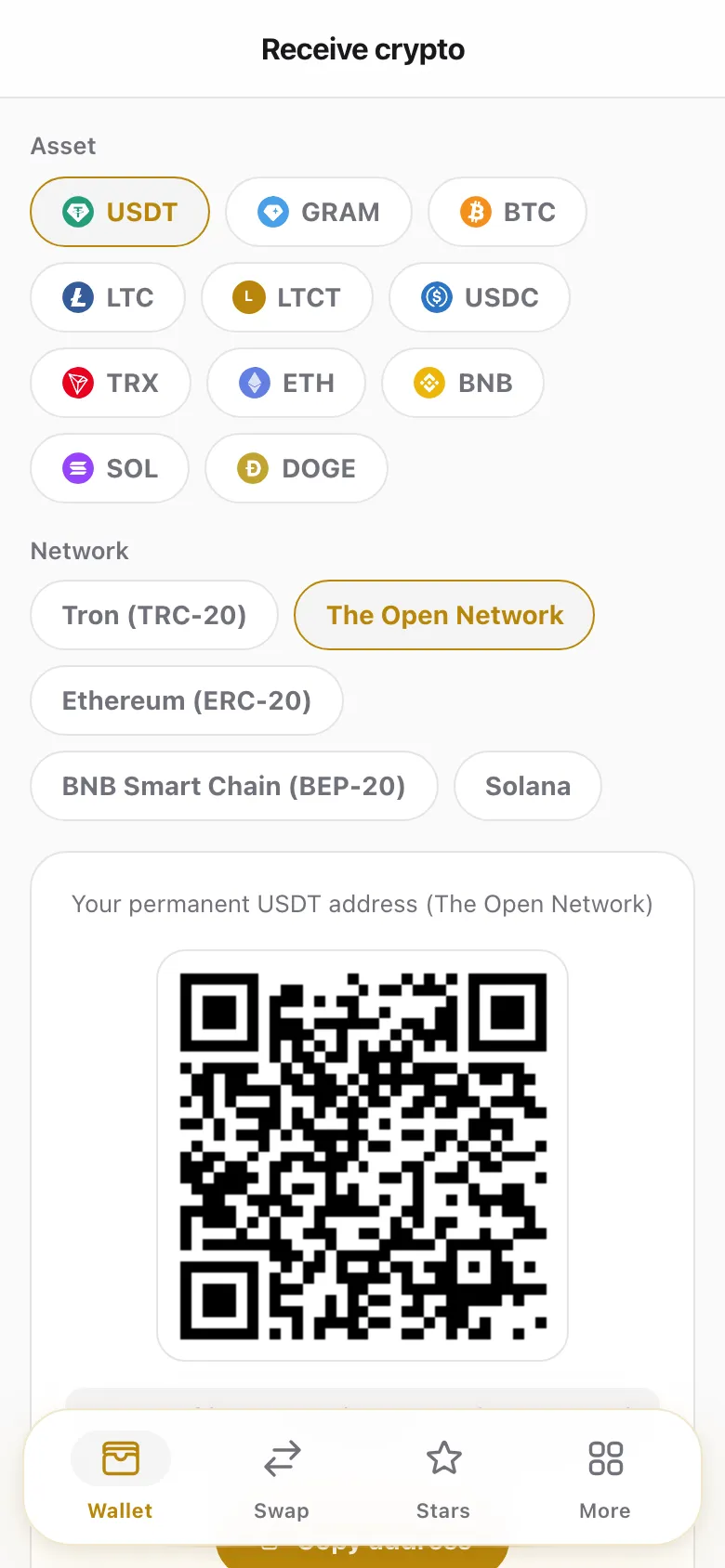
Your deposit address is permanent — the same address keeps working for every future deposit of that asset/network, so you can save it.
Choose the right network
The most important thing is that the network you send on matches the network you selected in the app. USDT on TON, TRC20, ERC20, and BEP20 are different rails with different addresses.
Minimum deposit and confirmations
- Each rail has a small minimum deposit (an anti-spam floor). Amounts below it may not be credited. The current minimum is shown on the Receive screen.
- Deposits are credited after the network reaches the required number of confirmations. This is usually seconds to a few minutes depending on the network’s congestion.
No memo/tag needed
Your deposit address is unique to you, so you do not need to add a memo, tag, or comment. Just send to the address.
Didn’t see your deposit?
- Confirm the transaction is confirmed on a block explorer.
- Confirm you sent the exact asset and network you selected.
- Confirm the amount was above the minimum.
- If everything checks out and it’s still missing after network confirmation, contact support with the transaction hash (txid).
Was this article helpful?
Thanks for the feedback.